To start connecting your PowerFab\Trimble projects to FabStation, you need to:
Step 1: Set-Up FabStation User in PowerFab
Step 2: Enable PowerFab within FabStation
NOTE 1:
If you already connected PowerFab to FabStation click here to learn how to sync a project.
NOTE 2:
PowerFab Sync is a paid feature. Please reach out to your CSM or Support to check if you have this Add-On.
Step 1: PowerFab Admin Set-Up
This step will be done only once for the whole company.
You have to be an Admin in PowerFab to complete it.
You will need to Create a FabStation user within PowerFab and grand it some permissions to acces the data required for integration. For that, please proceed with the following:
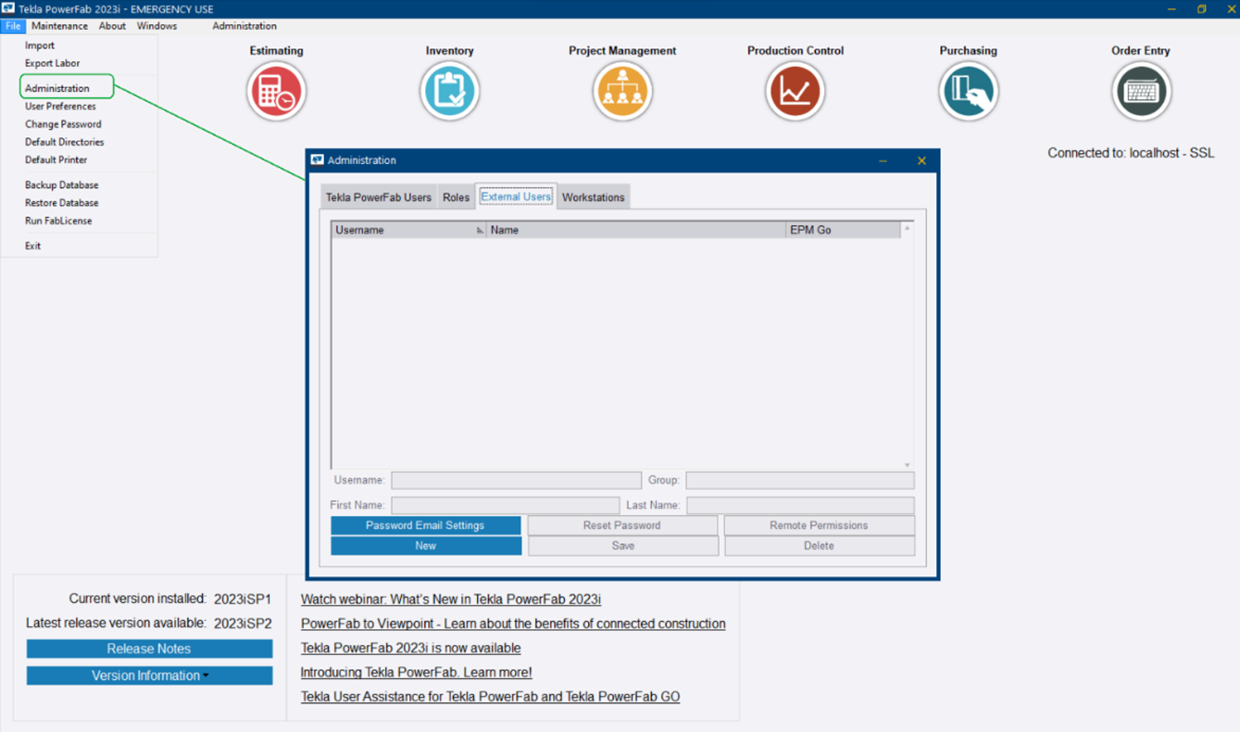
1. In the PowerFab application, openAdministrationfrom the File menu. 2.Go to the External Users tab.
3. Click on the New button to create an external user.
4. To fill the form, please use the following values:
Username = Fabstation_<CompanyName> (Note: < CompanyName > with be your organization name with no space and letters only. If multiple words are present, initials can be used in ALL CAPS.)
Group = Fabstation_Tekla
First Name = First name of your preference
Last name = Last name of your preference
5. When the form is filled, click on “Add”:
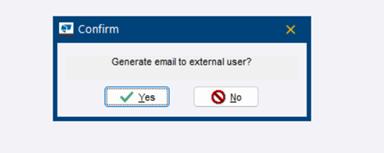
6. You will see a popup to ask whether an email should be generated with the password.
– If Yes is selected, a new email will be opened with the username and password.
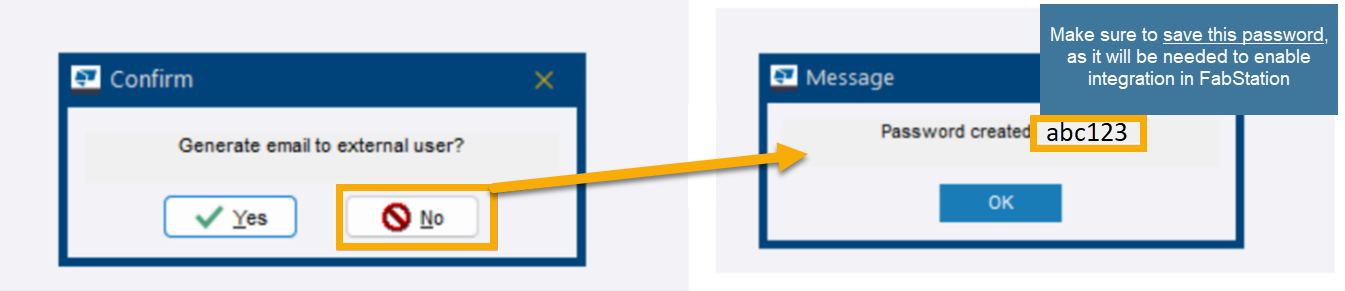
– If No is selected, a password will appear in a pop-up.
In both cases (email or pop-up), a one-time password will be visible on the screen, as shown below. Please make sure to save it.
Within the next few steps you will be setting up FabStation User Permissions to make sure that the data is transferring properly.
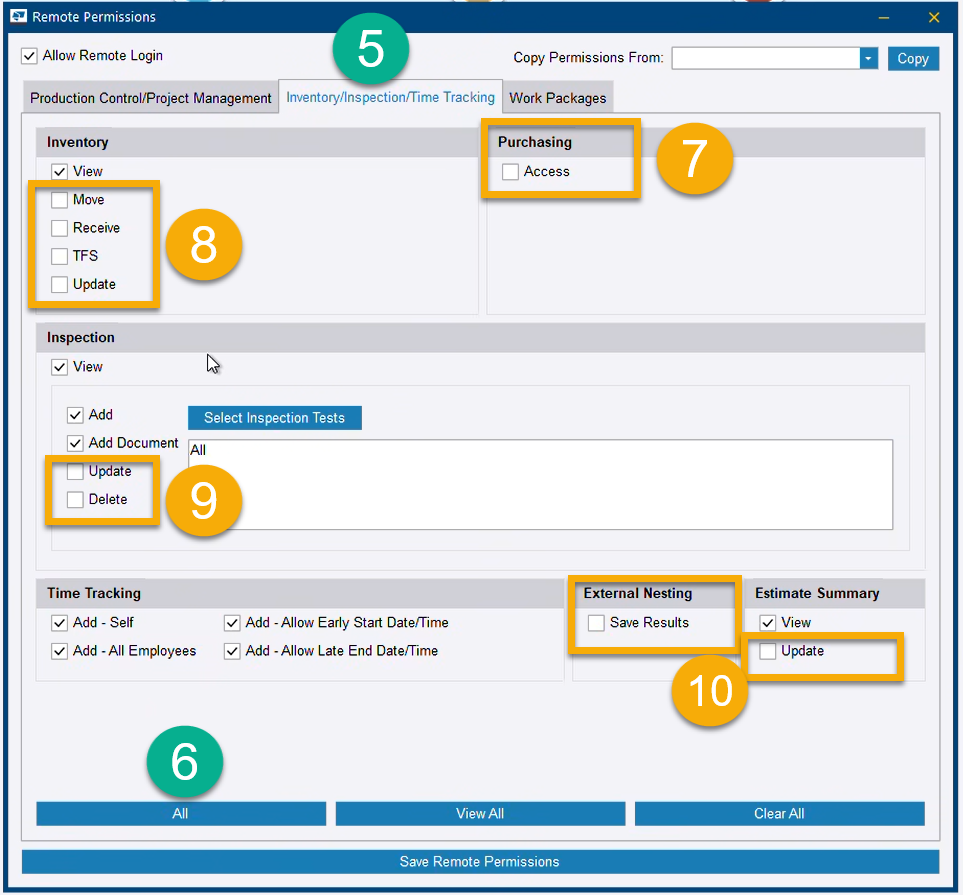
7 Next, click on the Created User and then select the “Remote Permissions” button, as shown below.
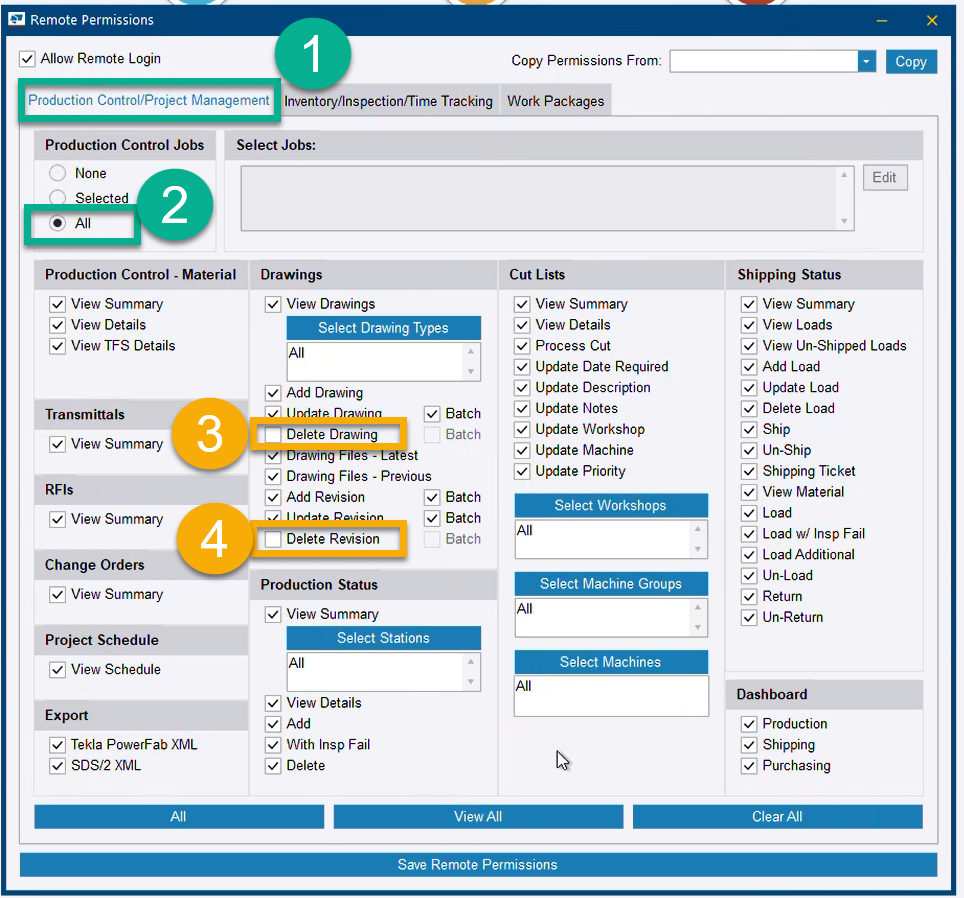
8 In the Remote Permissions window, please:
8.1 Select “Allow Remote Login”
8.2 Click “All” button at the bottom, and make sure that “All” in Production Control Jobs is selected.
8.3 Uncheck 2 Delete Permissions, such as
Delete Drawing
Delete Revision in Drawings
8.4 Move to Inventory/ Inspection/ Time Tracking tab.
8.5 Click on “All” at the bottom of the tab.
8.6 Uncheck the following permissions
Inventory: Everything except View.
Purchasing: Access
Inspection: Update, Delete
External Nesting: Save Results
Estimate Summary: Update
8.7 Save Remove Permissions.
That’s it. As the user is set, you can proceed with connecting it to your FabStation Company account to enable integration.
Step 2: Enable PowerFab within FabStation
NOTE 3:
Please note while PowerFab integration is in BETA, this step is not available for users. You will need to contact FabStation Supportif you would like us to enable PowerFab for you.
This step will be done only once for the whole company.
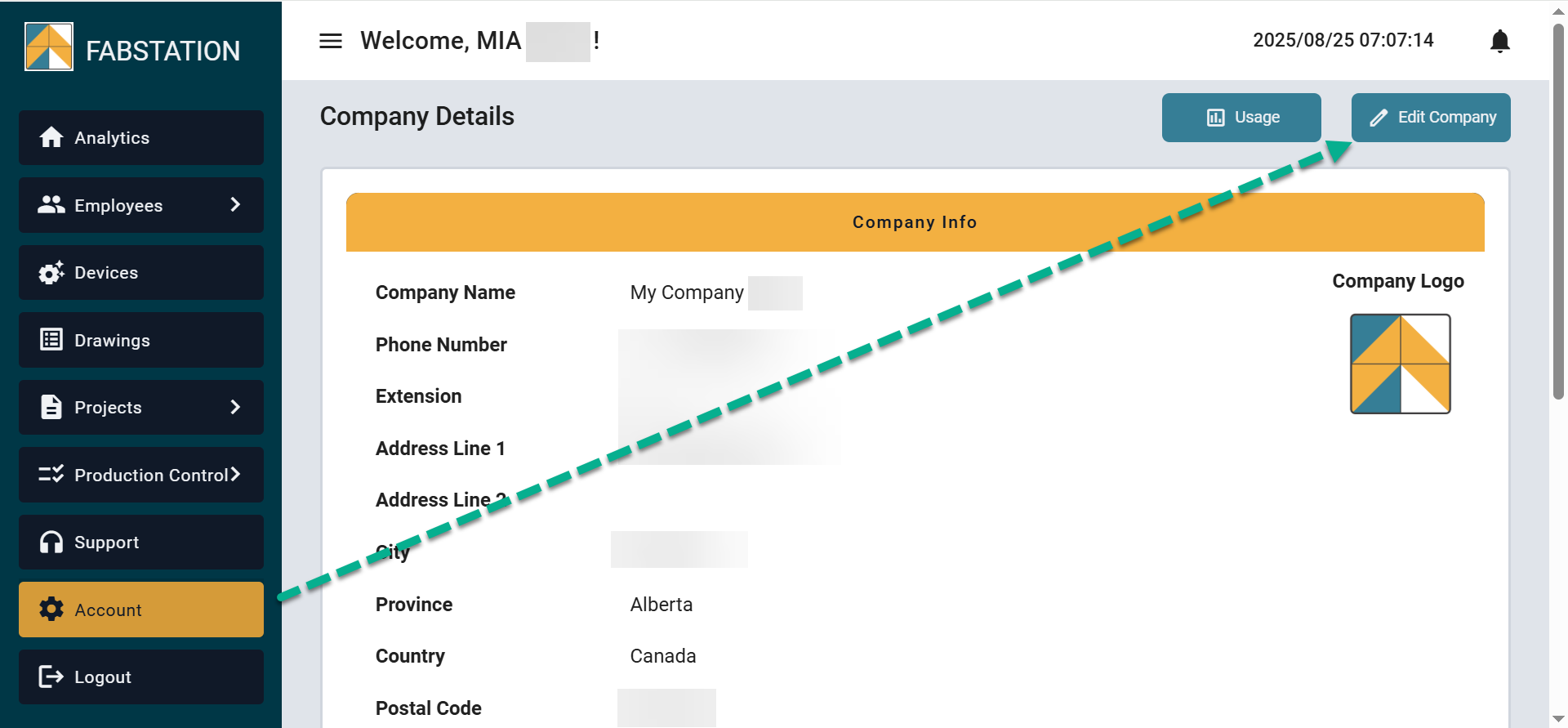
You need to be an Admin in FabStation to proceed with this step.
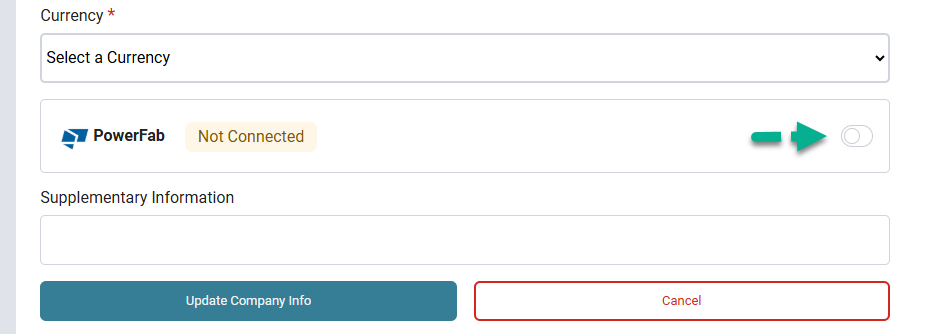
3. Scroll down to the bottom of the screen and click on the toggle next to PowerFab to enable it.
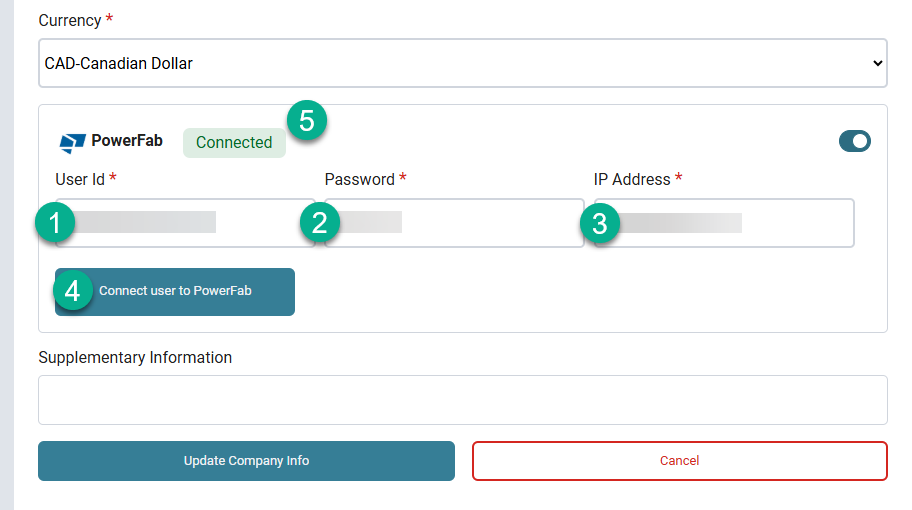
R4. Then add the user details that you got from PowerFab:
FabStation User ID = PowerFab Username
FabStation Password = Poassword automatically created in PowerFab.
IP Address = Public IP of the server in which the Powerfab has been hosted (consult your IT department if you are not such what to use here)
5. Once that is done, click on “Connect user to PowerFab”. The status next to PowerFab logo should change from Not Connected to Connected.
Important!
If you clicked on "Connect user to PowerFab" and the status is still "Not Connected"contact support. Before that, please make sure that your User ID, Password is IP were added correctly.
Once the PowerFab is Connected, please scroll to the bottom of the page and click on “Update Company Info” to save the changes.