Print

PowerFab: Set Up Project Files Integration
Once you initially connected your PowerFab account to FabStation, you can:

  • Sync PowerFab\Trimble project with FabStation
  • Important! Keep project data updated in Trimble
NOTE:

If you see no option to connect your project to PowerFab in Projects page, click here.

You will need to do this step every time you connect 🔗 a new FabStation project to your PowerFab\Trimble project. 

1. Configure your Trimble project

1. Go to your Trimble account on the Web browser.

2. Open the project you want to connect.

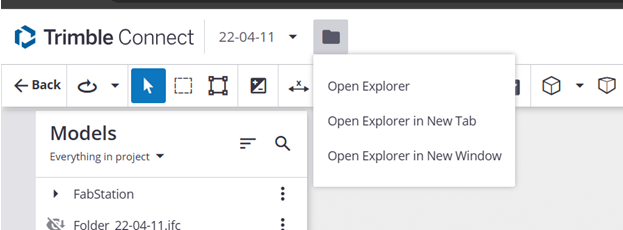
3. Unless you are already within the Explorer, open it like this:

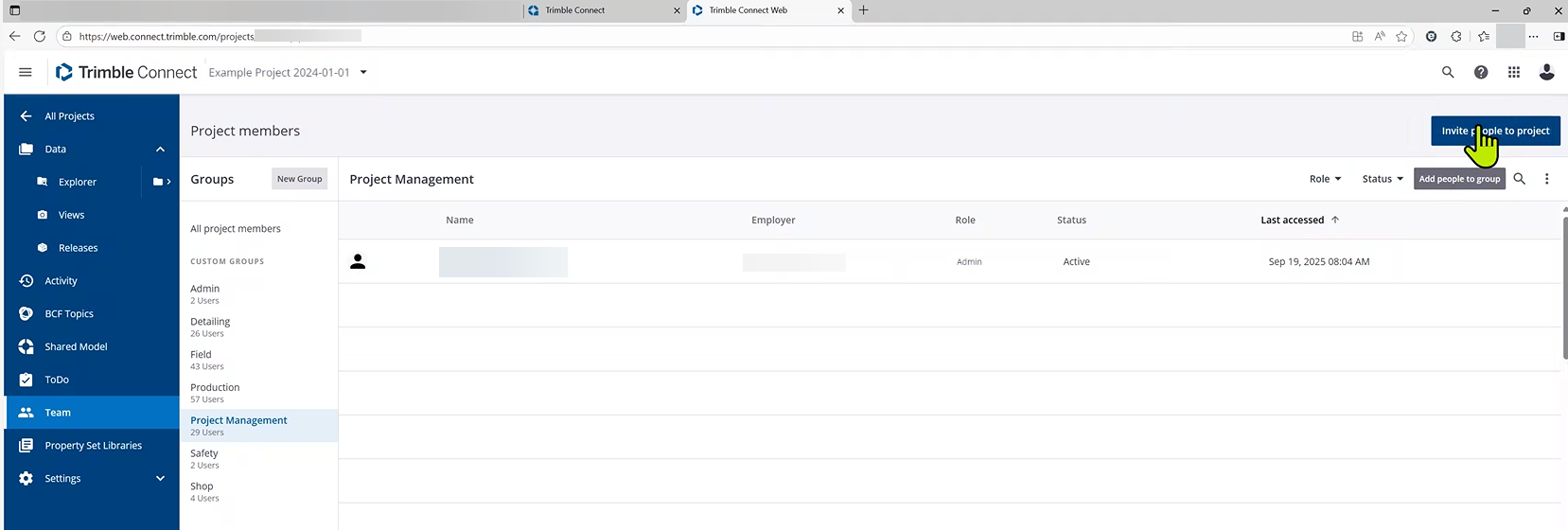
4. Select Team and click on “Invite people to project”:

5. A pop-up will appear. There, add our address  in the people area, making sure to select Admin as the Role. If it’s added correctly, it will look like this:

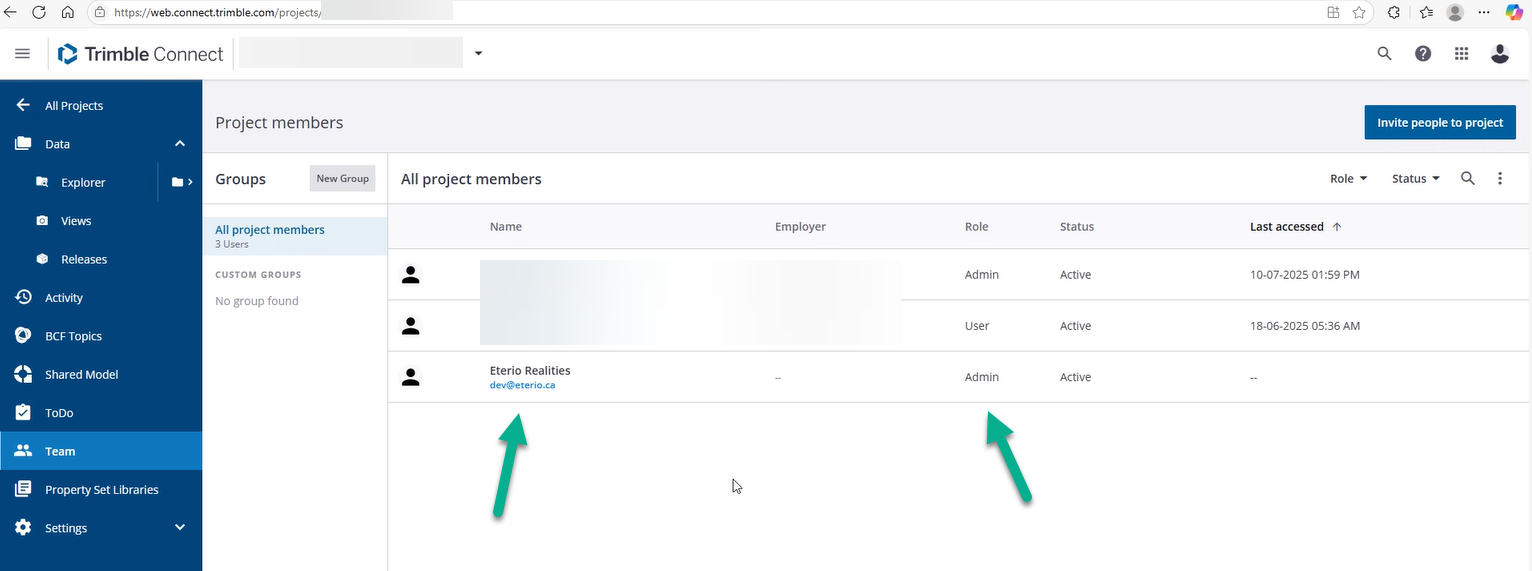
Please note that you need to separately add this email to all projects that you would like to connect to FabStation. 

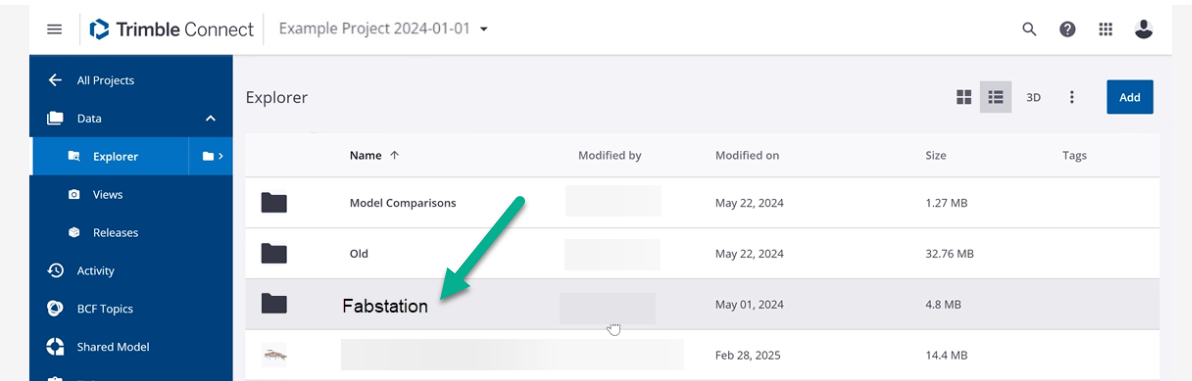
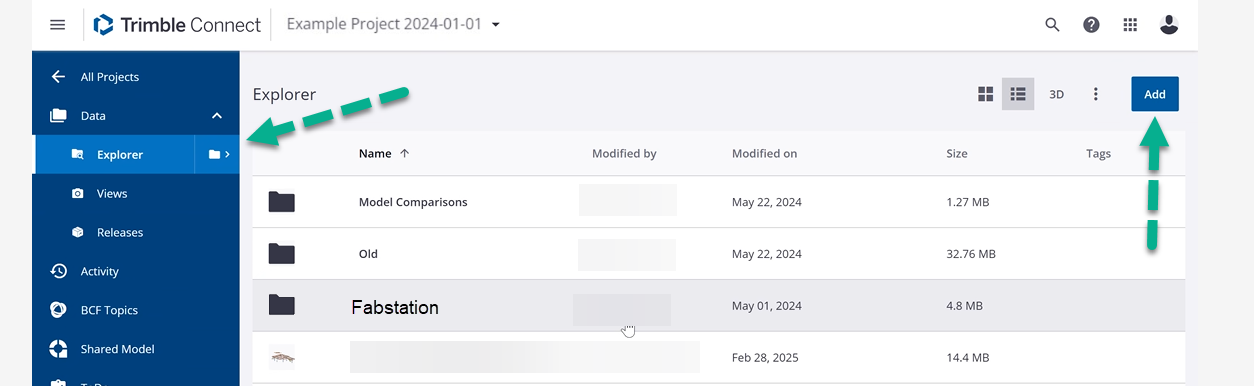
6 Once this step is complete, navigate to Data > Explorer and create there a folder called FabStation:

  • Moving forward, you need to upload all IFC that you want to see within FabStation into this FabStation folder, as this is the only folder we pick up the files from.
  • No need for KSS, PDFs or other files, since we pick up this information directly from PowerFab.  

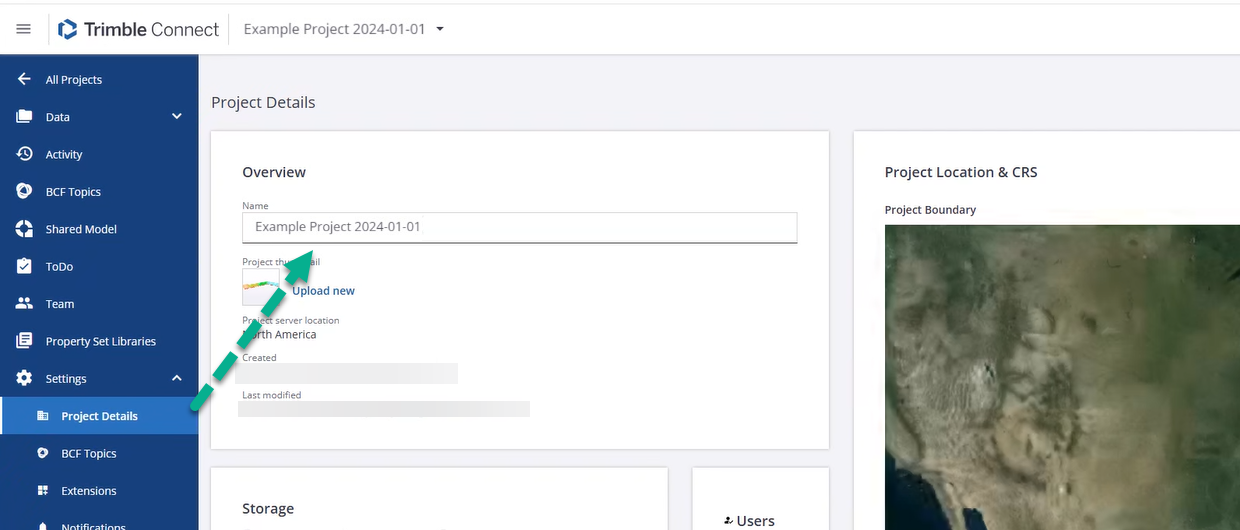
7. As the final step, navigate to Settings > Project Details and copy the Trimble Project Name under Overview

2. Create Project in FabStation

1. Navigate to FabStation Webportal.

  • If you do not have credentials, contact your company administrator. 

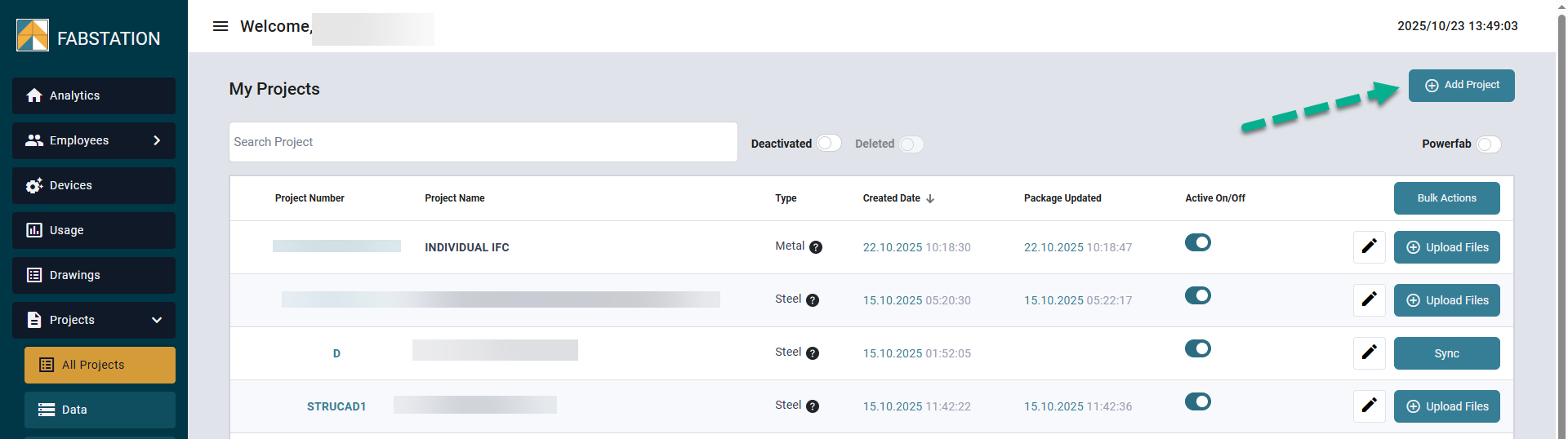
Click Projects > All Project and “Add Project” project there: 

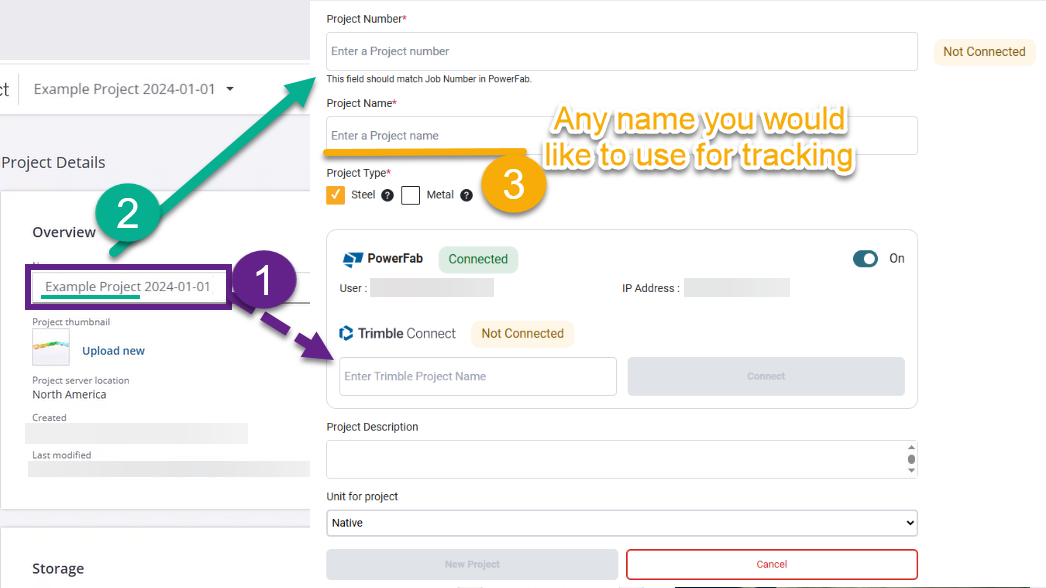
2. Enable PowerFab and fill the details: 

  • It is required for the Project Number in FabStation to match the Job number in PowerFab\Trimble.
  • It’s required for the “Trimble Project Name” in FabStation to match the “Name” of the project within Trimble. 

3. Once the details are filled, click on “Connect” button under Trimble Connect.

If one of the labels is still “Not Connected”, double-check the project name and number in Trimble. Please also note that it’s case-sensitive and additional spaced before the text, after the text or in the middle can cause issues. 

Note

Occasionally, there is a mismatch between the Job number in Trimble and PowerFab, while the Project Number in FabStation should match the Job Number in PowerFab specifically. In this case, please open PowerFab and check the job number of that project. 

3. Sync production data

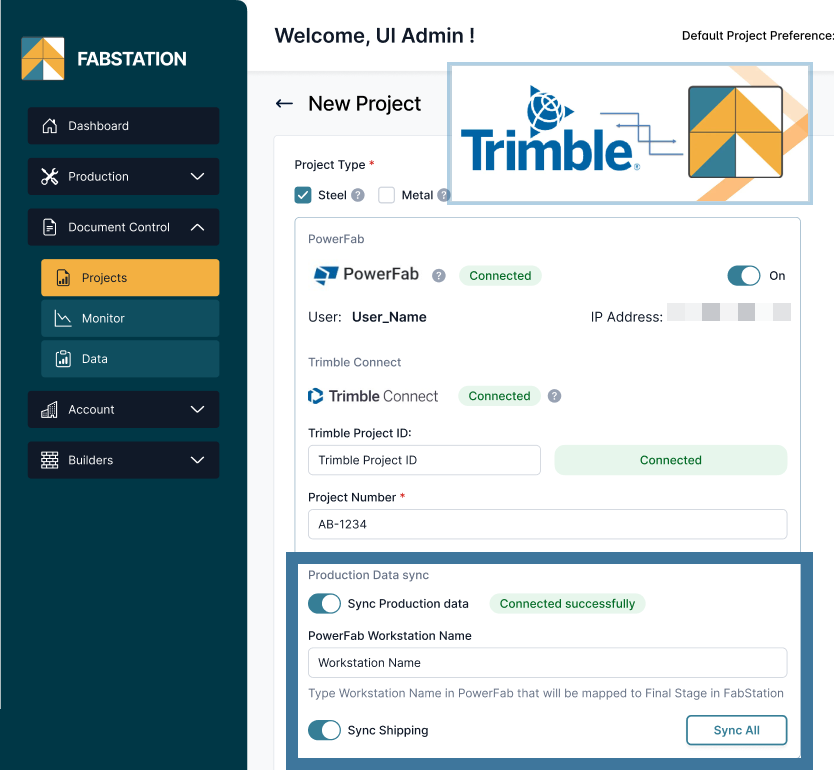
Once PowerFab\Trimble project data is connected, you will see 3 more options below: 

1. Turn On Sync Production Data to sync PowerFab workstations with FabStation Stages. It will auto-create identical workflow that you already have for that project in PowerFab. 

  • Note: For the flow to work, you need to have PowerFab program(workstations) be already assigned in the project in question. 

2. Indicate which PowerFab station will be assigned as Final in FabStation.

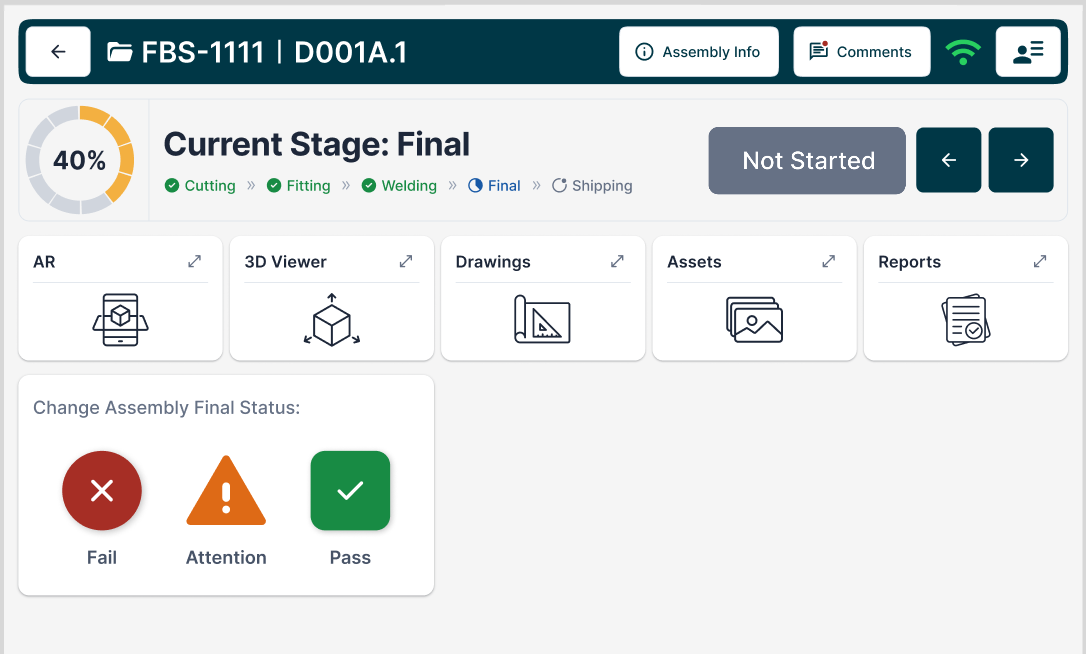
  • Final stage is used to track errors and has additional functionality if Pass\Fail\Attention. Usually it’s the last wokrstation before Shipping. 
  • Indicating Final stage is mandatory if you are using Production Data Sync. 

3. Turn On Sync Shipping Data to sync FabStation Shipping stage with PowerFab shipping module. It will sync your Shipping Lists\Loads and Statuses. 

Learn more here how Production Data Sync works.

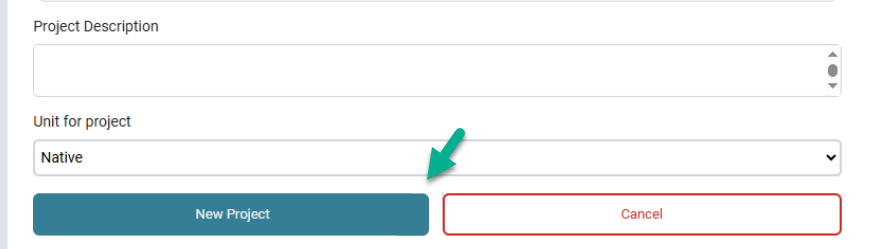
4. Once everything is setup, click on Sync All, and then on a “New Project”.

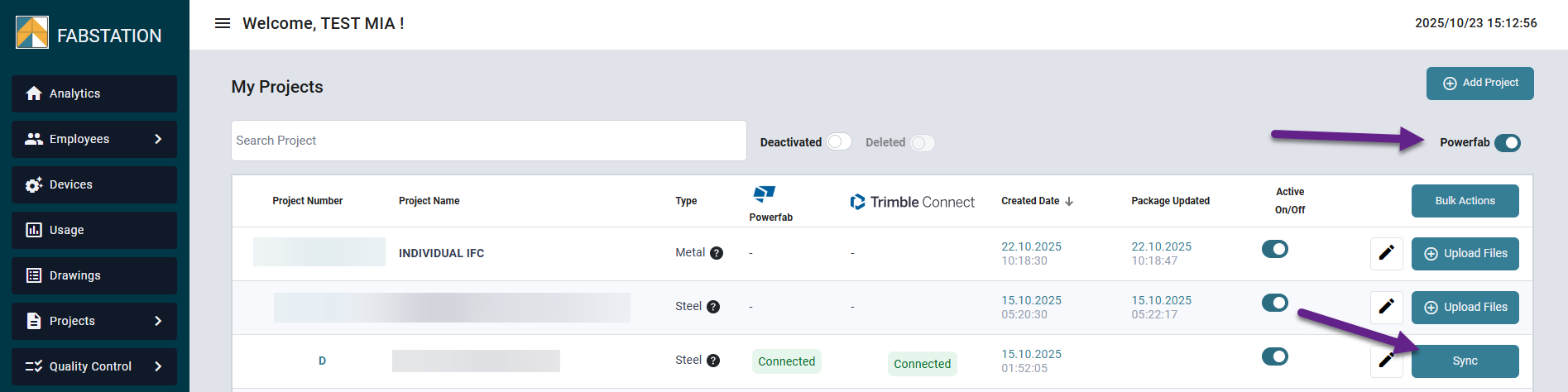
5. When the project is created, you will see it in All Projects page among all other projects. 

 Enable the toggle on the right for PowerFab connection statuses to show up. 

Every time you have a new IFC with new assemblies or revisions, add it to Trimble > FabStation folder, from where we can fetch it and process. 

Important!

Make sure that the IFC you upload to Trimble still have the same IFC settings (Assemblies: ON, Steel Fabrication View) as the IFC you normally upload to FabStation, as those settings are required for the IFC to function properly in FabStation. 

  • It’s not possible to upload the files directly to the projects synced with PowerFab, that’s why instead of the “Upload files” button you have “Sync”. 
  • The IFC uploaded into PowerFab still need to be processed. You will be able to see their progress and history within Monitor page, like a regular package. 
  • We automatically syncwith PowerFab every 1 hour if your Production Data Sync is ON and every 6 hours if it’s OFF. If you would like the processing to start sooner, manually click on “Sync” button. 
  • Watch out for correct IFC export setting (Assemblies: ON, Steel Fabrication View), as otherwise there maybe be issues with exported assemblies. 
  • Learn more here how Production Data Sync works within the App and Webportal. 
Table of Contents